Background
There are currently known issues with Microsoft activation servers affecting Remote Desktop Services (RDS) CAL licenses on Windows Server. This issue affects online activation of RDS licenses via the license wizard.
When attempting to activate RDS CAL licenses online, you may often see the following error message:
“The licensing agreement data provided to Microsoft is not valid. Check all information, make the necessary corrections, and submit the request again.”
The issue is not caused by incorrect license information or input errors, but by temporary problems with Microsoft activation servers.
Until Microsoft resolves the issue, phone activation is the only functional method to successfully activate RDS CAL licenses.
Instructions: Phone Activation of RDS CAL
Follow the steps below on your license server to complete phone activation.
1. Change connection method
- Open Server Manager.
- Select the Remote Desktop Licensing Manager section.
- Right-click the license server name and choose Properties.
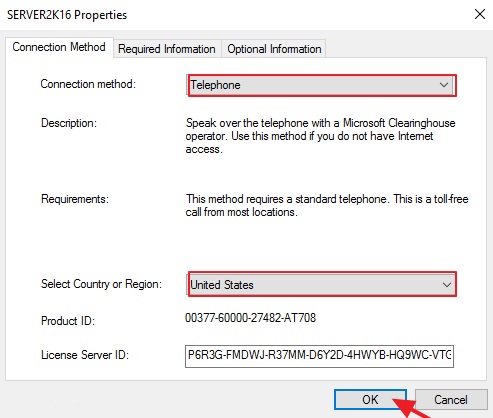
- Change Connection method to Telephone.
- Select your country or region (e.g., Germany, Austria, or Switzerland).
- Confirm by clicking OK.
2. Start the license installation wizard
- Right-click the license server name again.
- Select Install Licenses.
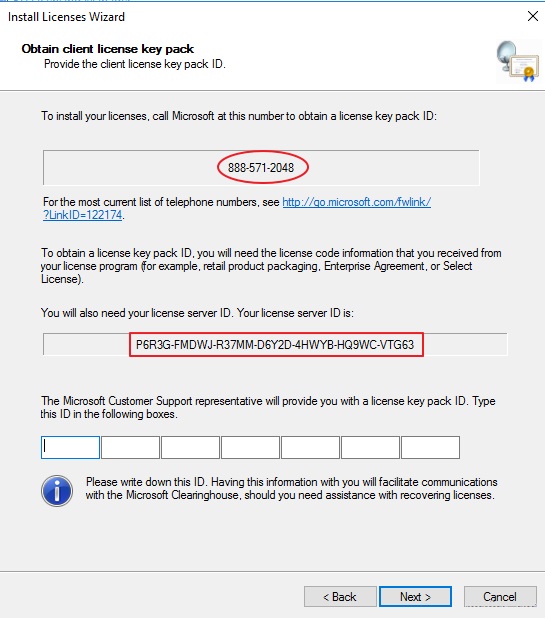
- Click Next until the phone number and Server ID appear.
- Note the Server ID (35-digit number).
3. Perform phone activation
-
Call the displayed Microsoft activation number.
- +44 (0)800 0188 354
- The number may vary depending on the country.
- Follow the automated instructions or choose to speak with a support agent.
-
Have the following information ready:
- Server ID (shown in the wizard)
- Authorization number
- License number
- Name and organization
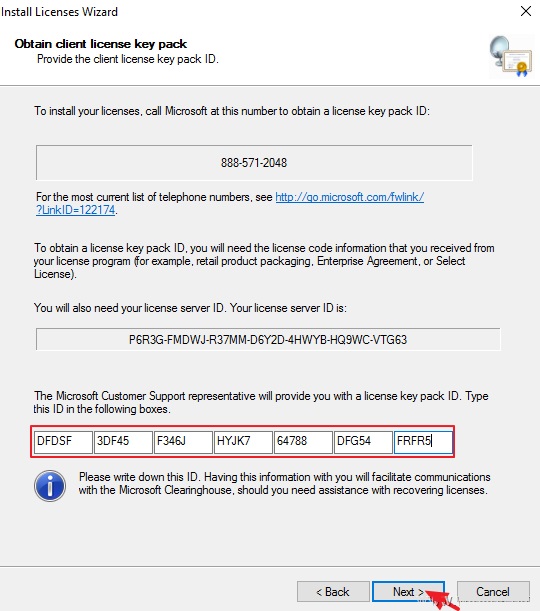
- The Microsoft representative will provide you with a License Pack ID (activation code).
4. Enter License Pack ID
- Enter the received License Pack ID in the installation wizard.
- Click Next to complete the activation.
- After successful activation, RDS CAL licenses will appear as „installed”.
Notes
| Activation Method | Status |
|---|---|
| Online / Web Activation | ❌ Not available (Microsoft server issue) |
| Phone Activation | ✅ Works and completed successfully |